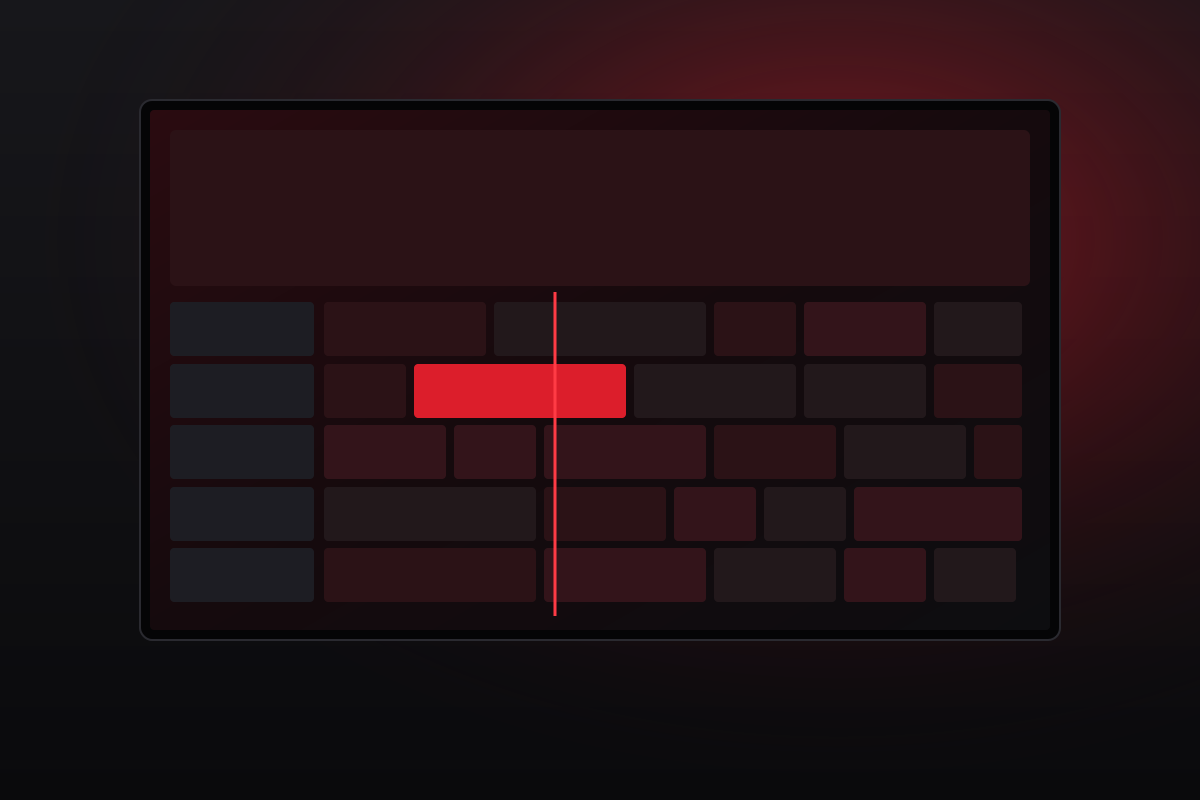
Scrolling through thousands of channels to find out what is on would take all evening. The EPG, or electronic programme guide, solves that. It is the grid of channels and time slots that shows what is on now, what is next and what is coming up later, much like the TV listings in a newspaper used to.
How an EPG works with IPTV
With traditional broadcast TV, the guide data travels alongside the signal. With IPTV, your player usually downloads the guide separately, as a data file that lists programmes for each channel with start and end times. The player then matches each channel in your list to its entry in the guide using an identifier.
When everything lines up, you see a tidy grid with programme titles, descriptions and sometimes images. When an identifier does not match, that channel's row appears blank or says "no information", even though the channel itself plays perfectly.
What a good guide lets you do
- See what is on across many channels at once, instead of switching one by one.
- Read a short description before you commit to a programme.
- Set reminders, in players that support them, so you do not miss the start of a match or film.
- Open catch-up programmes from the past few days, where the channel provides them.
Why the guide can look wrong
Blank rows
Some channels simply do not have guide data available, especially smaller or regional channels. Others may have data that has not been matched. Refreshing the EPG in your player sometimes fixes it.
Times are an hour or more out
Guide data is published in a reference time zone and your player converts it. If your device's time zone is wrong, or the player has a time offset setting, the guide shifts. Check the date, time and time zone in your device settings first, then look for an EPG time offset option in the player.
The guide never loads
Large guide files can take a while to download, particularly on slower devices. Leave the player open for a minute after signing in. If you use an M3U link, your player may need a separate guide address. Read our M3U vs Xtream Codes article to see why Xtream logins often handle this automatically.
Quick fix order: check the device time zone, refresh the EPG in the player, restart the app, then contact support if rows are still missing.
Choosing a player with a strong guide
Players vary a lot in how they display guide data. Some show a full grid with several hours at once; others only show the current programme under each channel name. If you browse live TV a lot, a full grid is worth having. Our player app guide covers what to look for.
Making the guide work for you
Once your guide is working, combine it with a favourites list. Many players can show a guide for favourites only, which turns a large line-up into a short, personal schedule that is quick to scan every evening.
If you are a ZORYFLIX customer and your guide looks wrong, send support a photo of the screen and tell us which player you use. The team will help you get it showing correctly.